How-to Guide
Translate in Google Sheets with Formulas
Master in-sheet translation with Lara's extension. Use simple formulas to translate, evaluate quality, and manage multilingual content at scale.

LARATRANSLATE for translation and LARAEVAL for quality evaluation — without leaving Google Sheets.With Incognito always enabled, your translation and evaluation content is never used to train or improve Lara’s AI models.
How your data is handledRequires a Lara Pro or Team plan. Sheets usage is billed separately.
Setup
Lara Translate for Sheets™ is an add-on developed by Translated. Two spreadsheet functions connect your content to Lara: LARATRANSLATE for translation and LARAEVAL for quality evaluation.
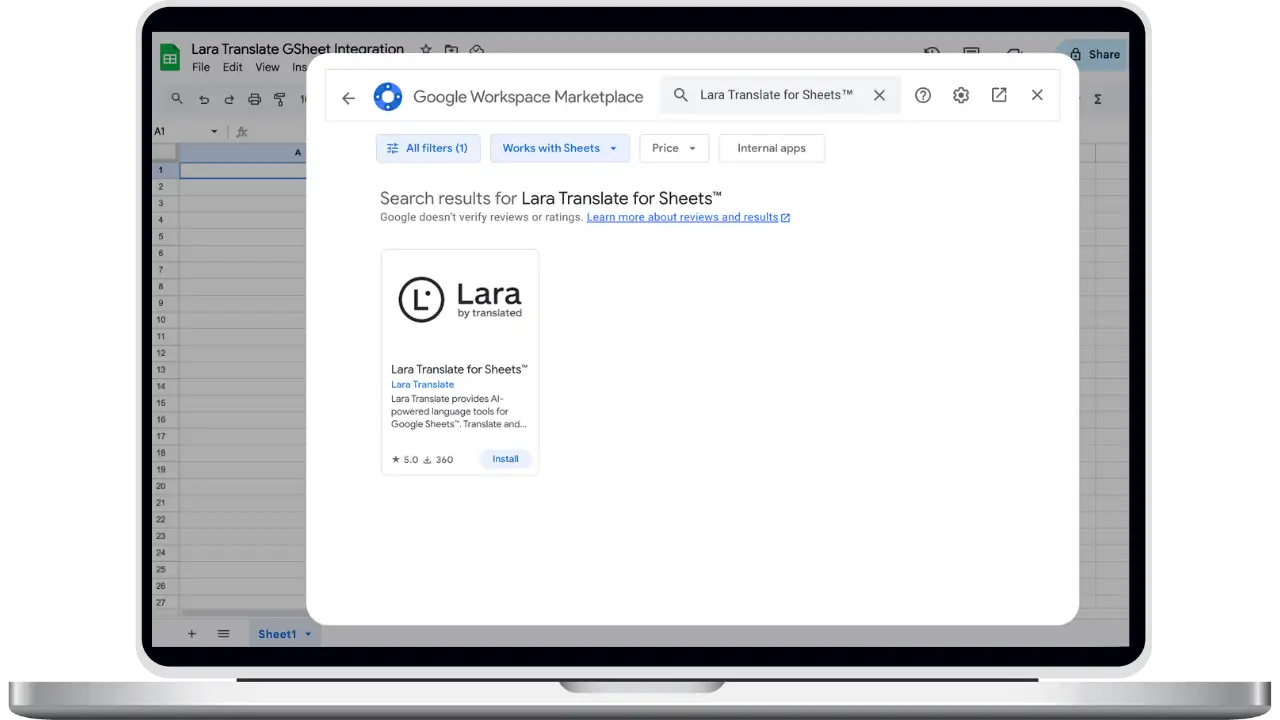
Find Lara Translate for Sheets™ in Google Workspace Marketplace, select Install and complete the Google authorization steps. You can also find the listing from Extensions → Add-ons → Get add-ons in your spreadsheet.
In your spreadsheet, choose Extensions → Lara Translate for Sheets™ → Open Menu. In the sidebar on the right, select Log in and sign in to your Lara account. Need an account? Select Create one. A Lara Pro or Team plan is required to use the add-on.
Put your source text and language codes in cells, then enter a LARATRANSLATE formula in an empty output cell. Reference the text, source language and target language in that order. Press Enter: the translation appears in the cell containing the formula.
Optional: add your translation preferences. In a spreadsheet you own, open Extensions → Lara Translate for Sheets™ → Sheet settings to choose existing glossaries, translation memories and a translation style.
Follow the installation guideOne row, from source to review
Use the same layout as the example above: source text in column A, context in B, translation in C, evaluation in D and score in E.
In row 1, enter it-it in A1, Add Context in B1, en-US in C1, Evaluation in D1 and Score in E1. Add the source text and context in row 2, then use the formulas below.
Read the arguments in order: text → source language → target language → context.
=LARATRANSLATE(A2; A1; C1; B2)B2 describes the characteristics of agricultural land. This context helps Lara interpret “terra” as soil.
Read the arguments in order: original text → translation to check → source language → target language.
=LARAEVAL(A2; C2; A1; C1)1 flags critical errors; 2 indicates minor or stylistic issues; 3 is the highest rating. Use the explanation to guide your review.
B2 supplies context to LARATRANSLATE. This LARAEVAL formula compares A2 and C2 without passing B2 again.
For a column of text, enter this version in C2 and fill it down. A2 and B2 advance to the next row together, while $A$1 and $C$1 keep the language codes fixed.
=LARATRANSLATE(A2; $A$1; $C$1; B2)Terminology
Select a Lara glossary to guide how product names and recurring terms are translated. Use your preferred terminology across the content in your spreadsheet.
Adaptive translation
Select a translation memory containing past source texts and their translations. When Lara finds similar matches, it uses those examples to adapt the style and phrasing of the new translation.
How translation memories workStyle
Choose Faithful, Fluid or Creative to guide how Lara expresses your content, subject to your team’s settings.
The spreadsheet owner selects default glossaries, translation memories and style in Sheet settings. Formula parameters can override these defaults for individual translations. Changes apply to new requests; existing cell results stay unchanged.
Read the full function referenceGive every row a clear source, a target language and a place for review. Here are three ways to structure your next translation project.
E-commerce
Keep the SKU, product title and description together. Use a category or material column as context, and reserve separate columns for French, Italian or German copy.
Try it with product titles, descriptions and category labels.
Product & localization
Pair each string with a note about where it appears. A button, an error message and a navigation label may need different wording, even when the source text is similar.
Try it with app strings, onboarding flows and release copy.
Marketing & support
Organize campaign headlines or help-center answers by topic. Keep an approval column beside each translation so editors can record revisions before content goes live.
Try it with campaigns, FAQs and customer-facing messages.
Keep source text, translations and review decisions together in a spreadsheet shared from My Drive.
In the current version, formulas run on the spreadsheet owner’s Lara account. The owner chooses default memories, glossaries and style. Usage from collaborators is billed to that account. Incognito is always enforced for Sheets.
Editors can open the sidebar, sign in, use formulas and freeze completed results. They cannot change the owner’s sheet defaults. Incognito stays on for everyone. The sidebar’s sharing notice explains whose account is used.
Select completed cells, open Extensions → Lara Translate for Sheets™ → Freeze Lara formulas to values and confirm. The tool replaces Lara formulas with their results, keeping finished work fixed when Sheets recalculates.
Shared Drive files are not currently supported. Use a spreadsheet in an individual’s My Drive and share it with collaborators.
Plans & usage
Use Sheets with an active Lara Pro or Team plan.
Sheets usage is billed separately from your subscription. It does not use your plan’s included monthly character allowance. Translation and evaluation appear as separate usage lines on your invoice.
Monitor consumption in your Lara account. For a large catalog, evaluate a sample first: evaluation costs more per character than translation.
View plans and subscription termsSelect the currency used for your Lara billing.
| Function | Pro | Team |
|---|---|---|
TranslationLARATRANSLATE | €20 | €15 |
EvaluationLARAEVAL | €100 | €75 |
Rates shown for Pro and Team. See the Sheets pricing guide.
Reopening a sheet can trigger new requests. The add-on uses a Google-managed cache to reuse translations for up to 6 hours without an additional translation charge. If a cached result expires or is unavailable, recalculation can process and bill the content again. Freeze completed results to prevent those formulas from running again.
Privacy in Google Sheets
Your content is not used to train AI models. Incognito applies automatically to every translation and evaluation request and cannot be switched off. It keeps your source text, context, translations and evaluations out of model training and improvement. Read how we process and handle your data below and in our privacy policy.
The add-on requests permission to view and manage spreadsheets where it is installed. Translation uses the source text and optional context you supply; evaluation uses the source and translated text. Content is sent to Lara to perform those requests and return the results.
The Marketplace listing includes Google email and profile permissions, spreadsheet access, sidebar display and connection to external services. You also sign in to your Lara account in the add-on; the email shown in its sidebar belongs to that Lara account.
Lara Translate for Sheets™ uses Enforced Incognito for every translation and evaluation request, including in shared spreadsheets. Users and team owners cannot switch it off for this integration. Content still needs to be sent to Lara for processing, and technical service logs may still be retained.
Source text, context, translations and evaluation content processed through this integration are not used to train or improve Lara’s AI models. This protection applies regardless of the privacy settings you use in other Lara products. You can still use existing translation memories and glossaries to guide a translation.
Technical service logs are retained for 90 days. The content processed for translation and evaluation is excluded from these logs. Translation memories and glossaries are separate resources: they remain available until you delete them or request deletion of the associated Lara account.
Lara processes translation and evaluation requests on infrastructure operated by Lara or its hosting providers. The add-on’s temporary cache is managed by Google. Data is transmitted over HTTPS. Access to Lara’s technical service logs is restricted to authorized personnel with the relevant privileges.
The add-on temporarily caches translations for up to 6 hours using a cache managed by Google on the extension side. This cache is not hosted on Lara’s servers and is separate from Lara’s technical logs. Freezing changes the cells in your spreadsheet; it does not delete data already sent to Lara. For data access or account deletion requests, contact support@laratranslate.com. Deleting a Lara account includes its associated translation memories and glossaries.
Bring Lara Translate for Sheets™ into your workflow. Connect your Lara Pro or Team account to start translating.
Install from MarketplaceHow-to Guide
Master in-sheet translation with Lara's extension. Use simple formulas to translate, evaluate quality, and manage multilingual content at scale.

Knowledge
Stop copy-pasting between tools. Learn how translation integrations reduce effort, maintain consistency, and let you scale multilingual work safely.